Some basic network troubleshooting steps you can take on your laptop/desktop 1 0
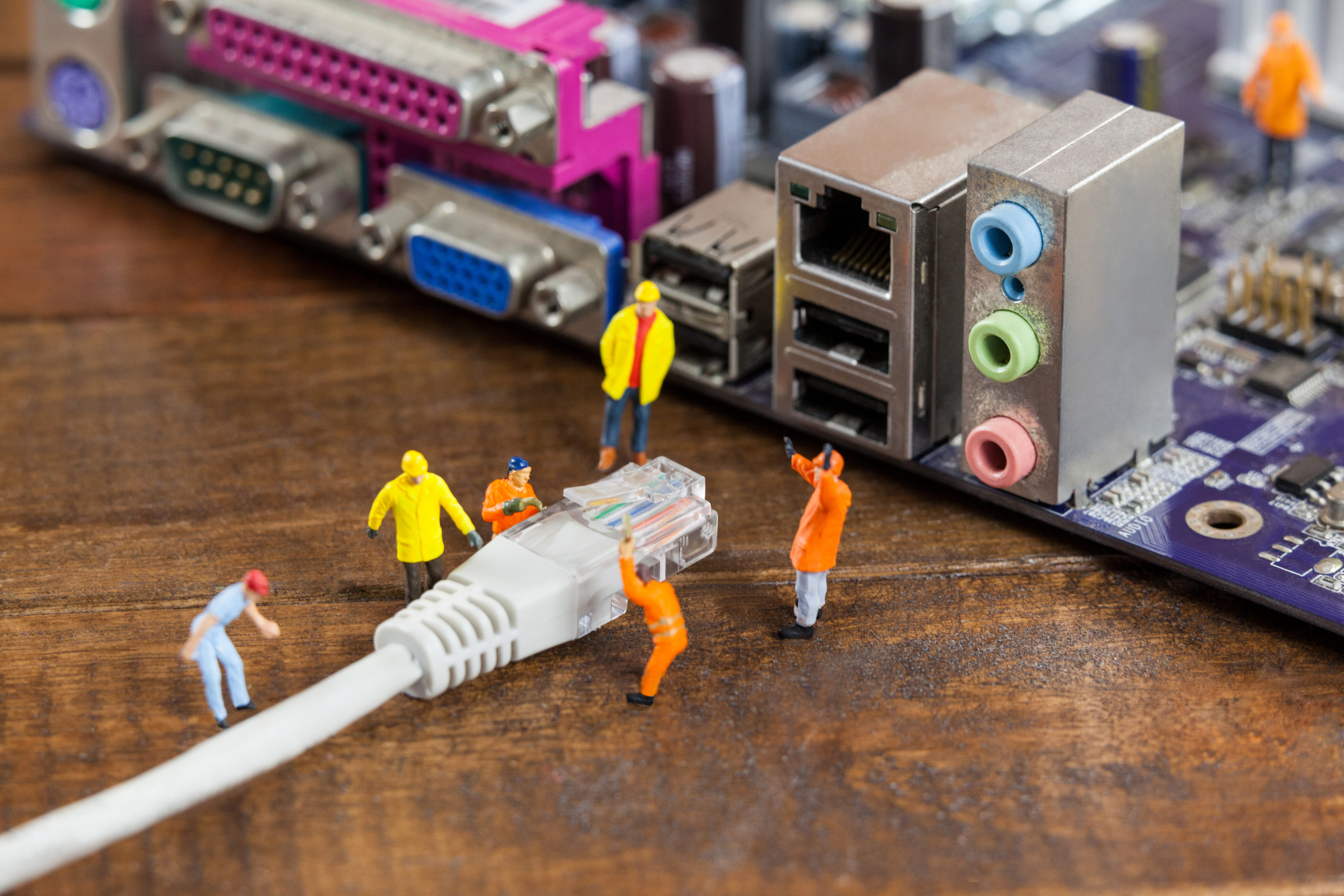
Here are some basic network troubleshooting steps you can take on your laptop/desktop:
Check your physical connections: Ensure that your laptop is connected to your network via Ethernet cable or Wi-Fi, and that the cables are properly plugged in and not damaged.
Restart your laptop and modem/router: Restarting your laptop and network devices can often resolve connection issues. Unplug your modem/router for at least 10 seconds before plugging them back in.
Disable and enable your network adapter: Open your Network and Sharing Center, and click on "Change adapter settings". Right-click on your network adapter and select "Disable". Wait a few seconds, then right-click on it again and select "Enable".
Check your IP address: Open the Command Prompt and type "ipconfig". Look for your IP address, subnet mask, and default gateway. Ensure that they match the IP address range of your network.
Reset your TCP/IP stack: In the Command Prompt, type "netsh int ip reset" and press Enter. This will reset your TCP/IP stack and can help fix network issues.
Disable your firewall/antivirus: Your firewall or antivirus may be blocking your network connection. Try temporarily disabling them to see if that resolves the issue.
Update your network driver: Visit your laptop manufacturer's website and download the latest network driver for your laptop. Install the driver and restart your laptop.
If none of these basic troubleshooting steps resolve your network issues, you may need to contact your internet service provider or a professional technician for further assistance.